To assist you in setting up and managing applying WordPress for your website, we have prepared comprehensive documentation that covers the entire process, starting from the very beginning. This documentation provides step-by-step instructions and guidance to ensure a smooth configuration and management experience. Please refer to the documentation for detailed information and instructions.
Introduction
Vehicle Rental is a block theme specifically crafted using the WordPress Site Editor.
Block ThemeA block theme in WordPress is one that takes advantage of the block editor extensively for designing and structuring the site. The block editor allows users to create content in a more visual and modular way by using individual "blocks" for various elements like text, images, galleries, buttons, and more.
Theme Installation
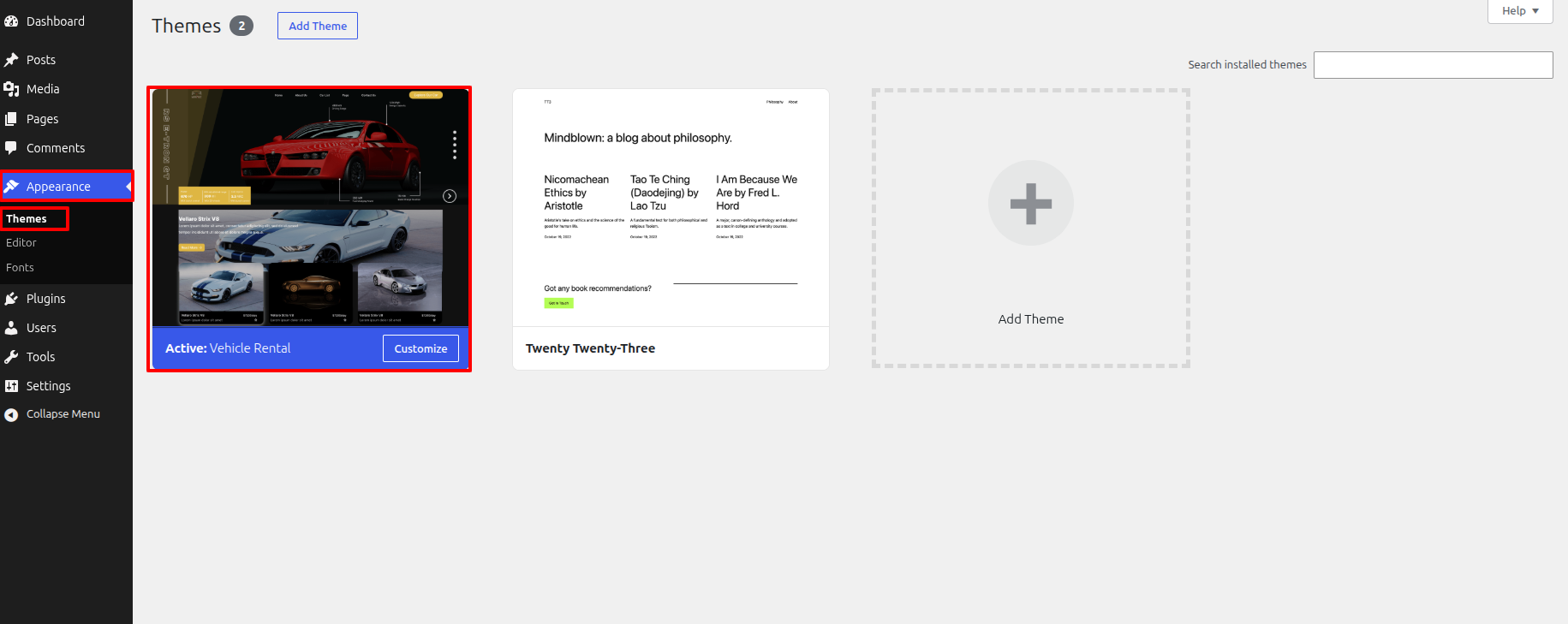
Go towards thier Wordpress dashboard then..
- Go to the menu Appearance > Themes and click the Add New Theme button.
- After reaching the themes page, tap the "Add New" box...
- Select the Upload Theme button.
- After selecting an"Browse" option, tap Vehicle Rental theme in your desktop, so after that picked "Install"
- WordPress must now start installing a theme users have chosen, and upon completion, you will see enthusiastic statement that includes options to activate the theme or preview it operating. Best regards! The installation of thier theme is mostly accomplished and set up.
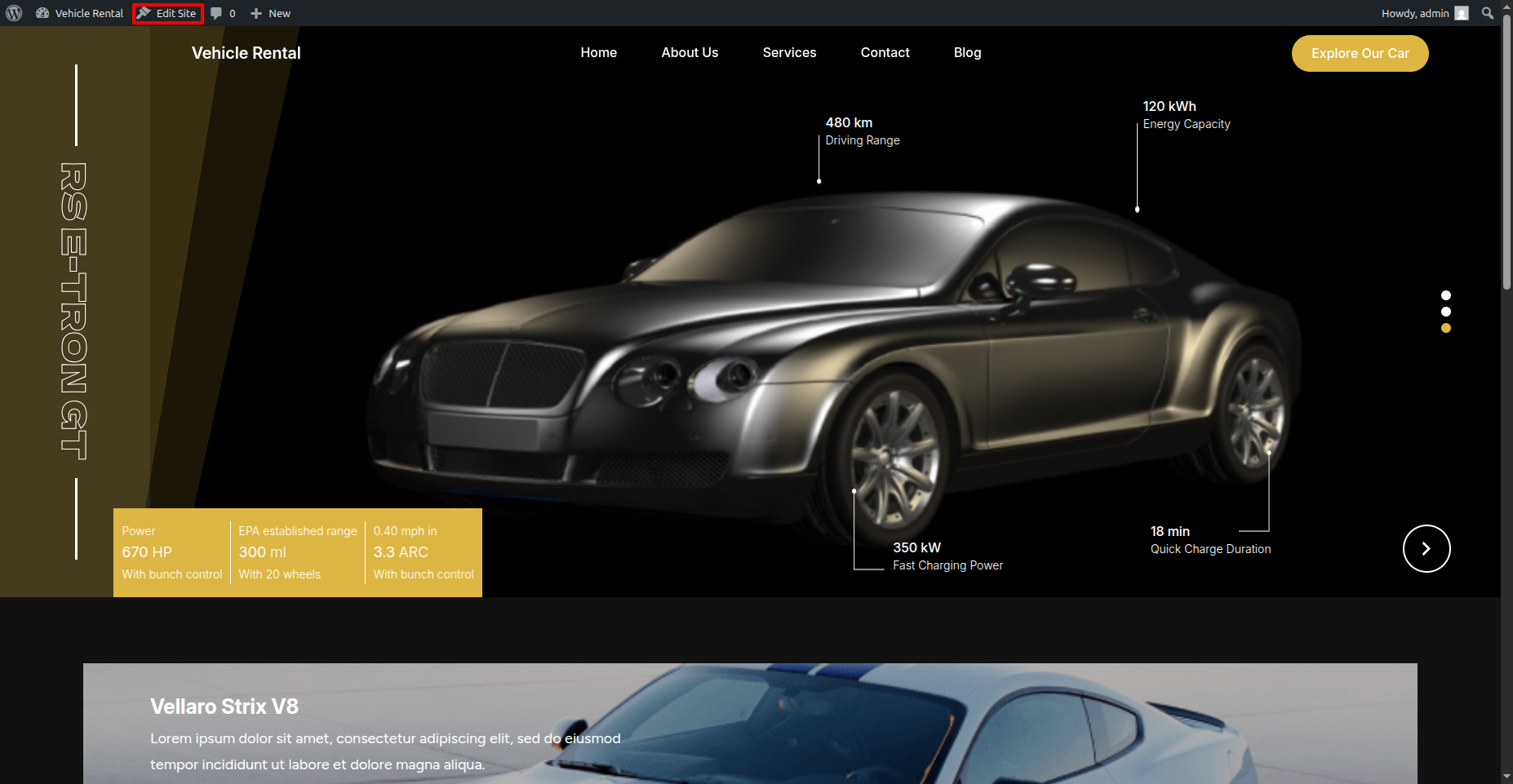
Editing Site
Visit your site's URL and select the "Edit site" link from the admin bar to initiate the editing process.
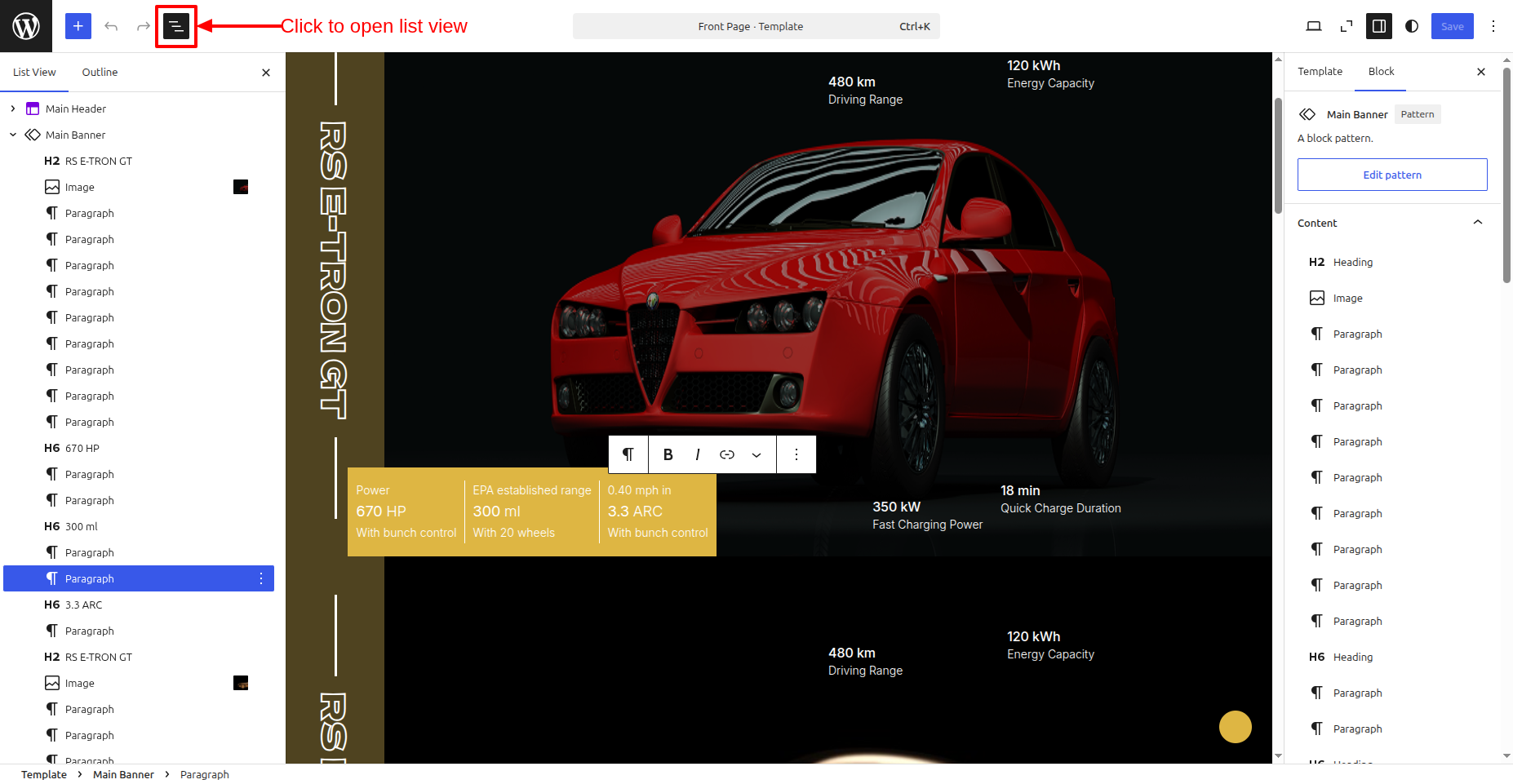
To gain a clearer understanding of the site/page structure, click on this icon to open the List View.
Header Section
Use the guidelines below regarding setting up the header section.
Go to WordPress Dashboard -> Appearance -> Editor -> customize each item according to your preferences by clicking on them.
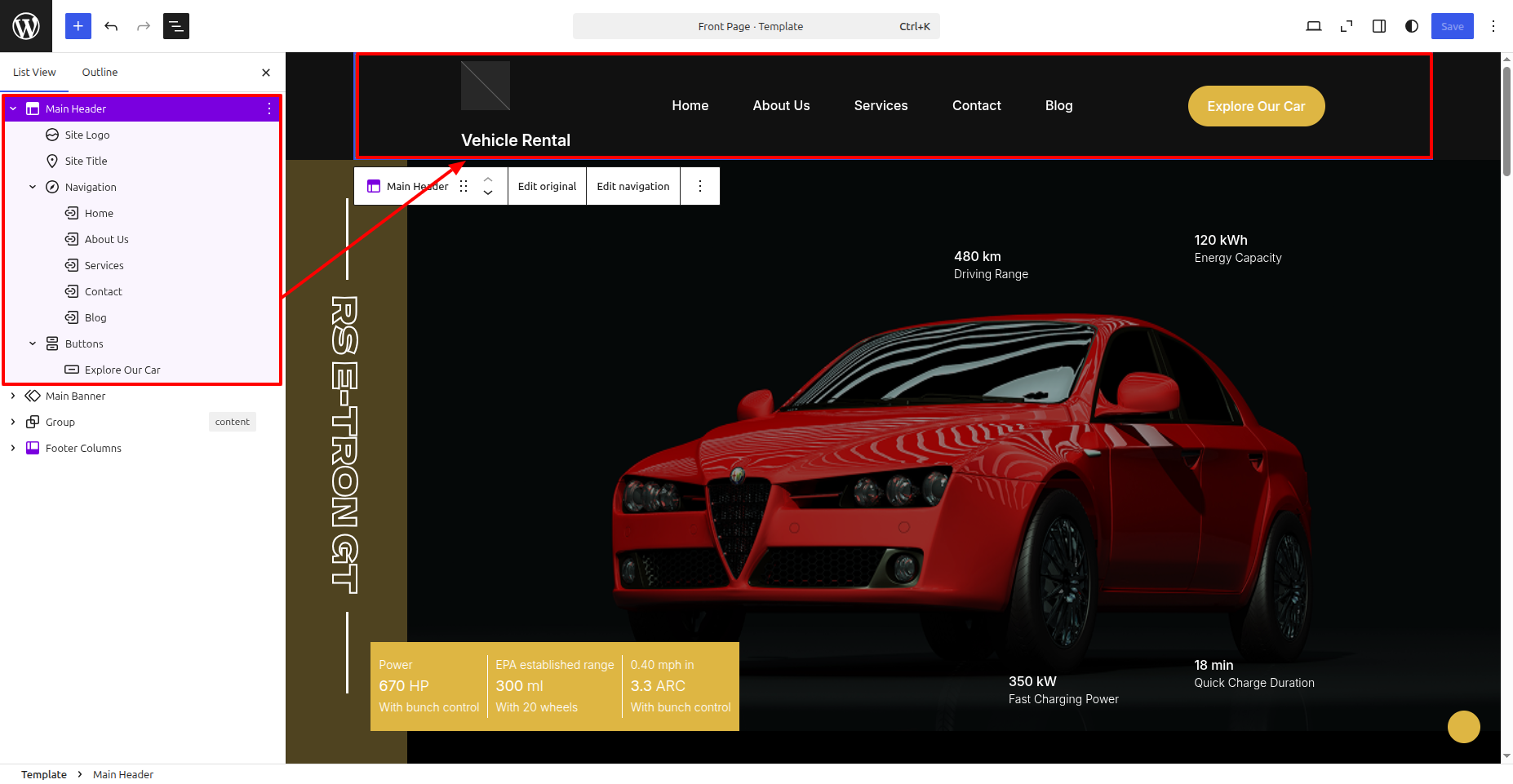
These are the front part of the header section.

Banner Section
Use the guidelines below regarding setting up the Banner section.
Go to WordPress Dashboard -> Appearance -> Editor -> customize each item according to your preferences by clicking on them.
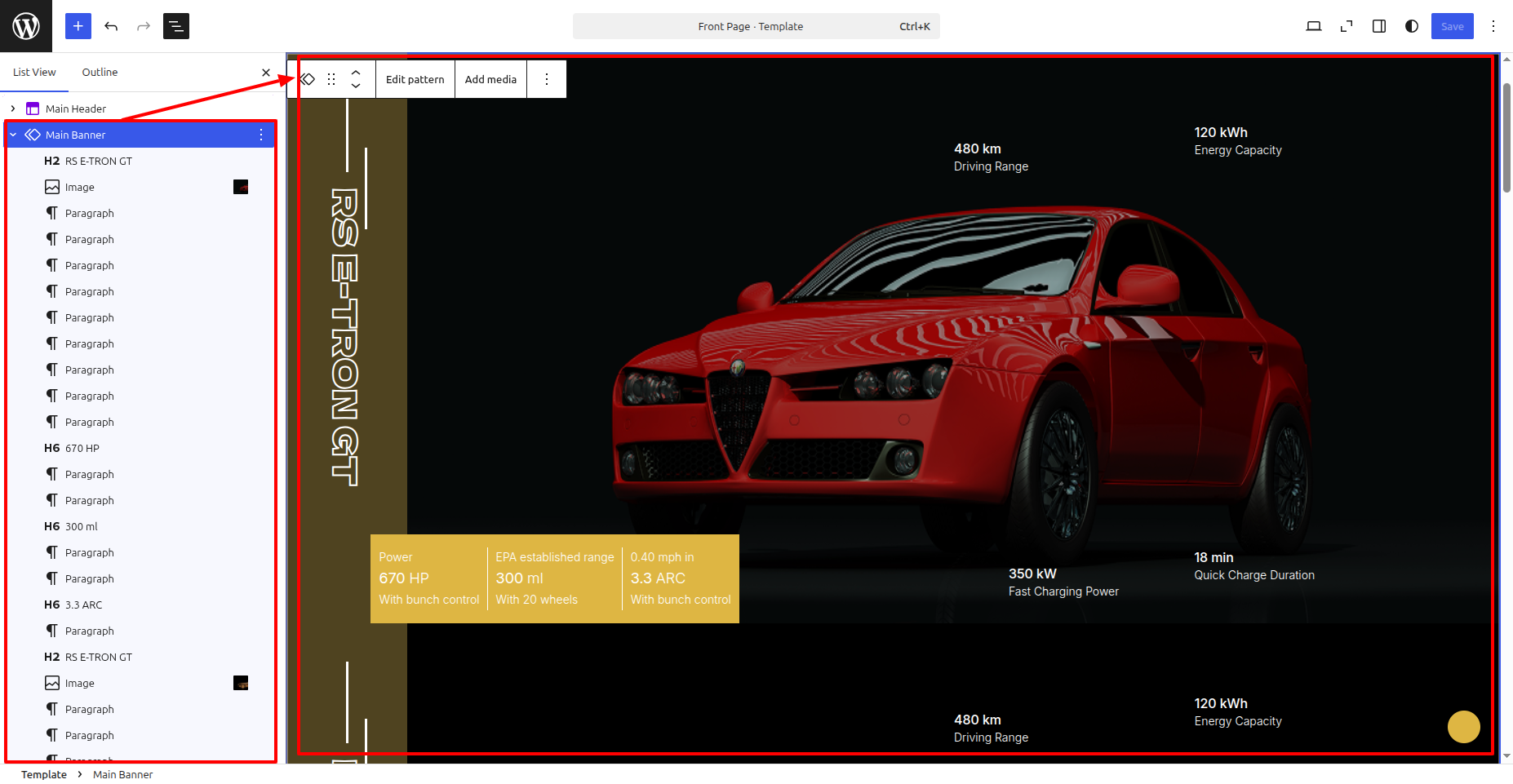
These are the front part of the Banner section.
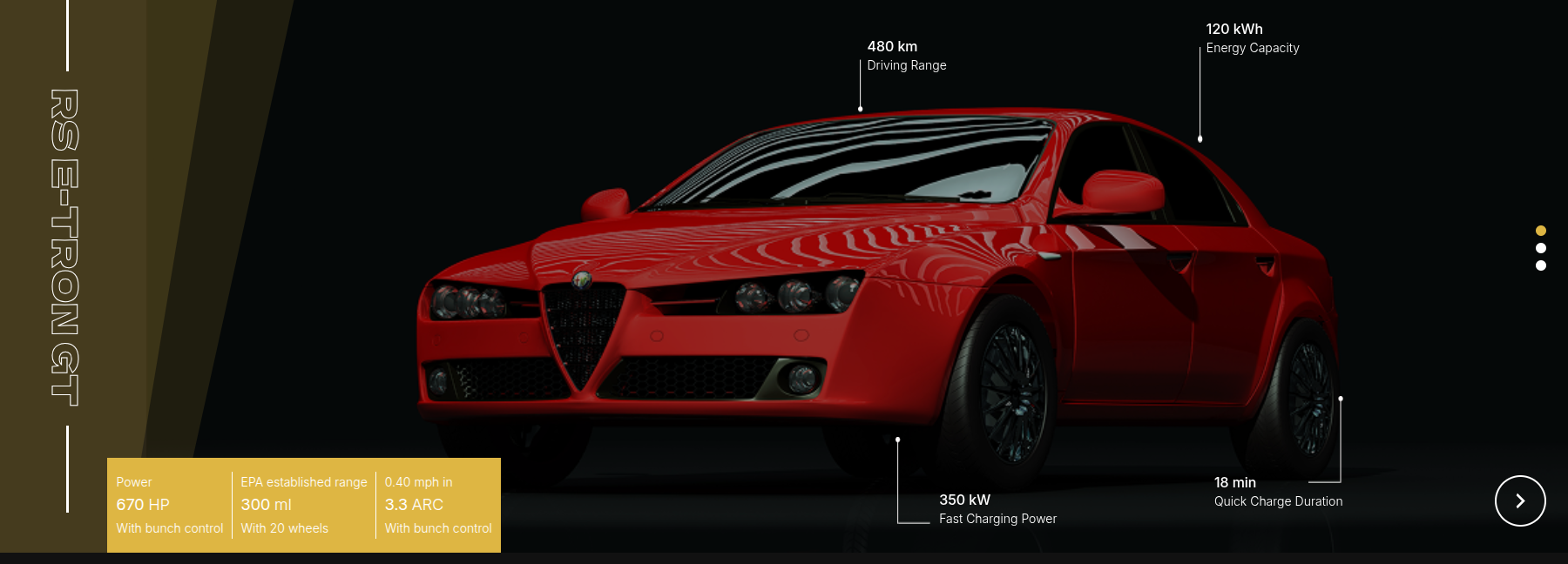
Cab Tab Section
Use the guidelines below regarding setting up the Cab Tab section.
Go to WordPress Dashboard -> Appearance -> Editor -> customize each item according to your preferences by clicking on them.
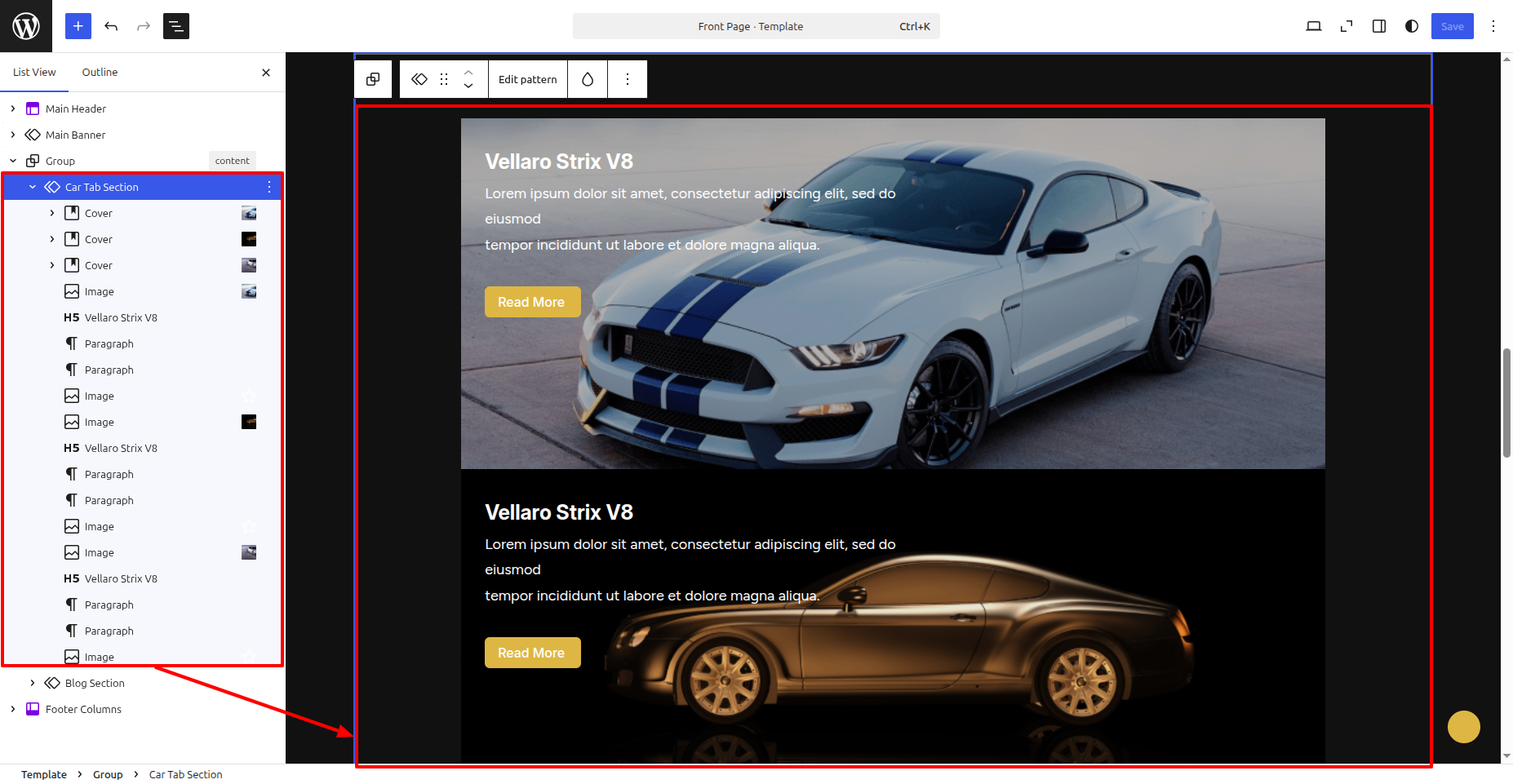
These are the front part of the Cab Tab section.
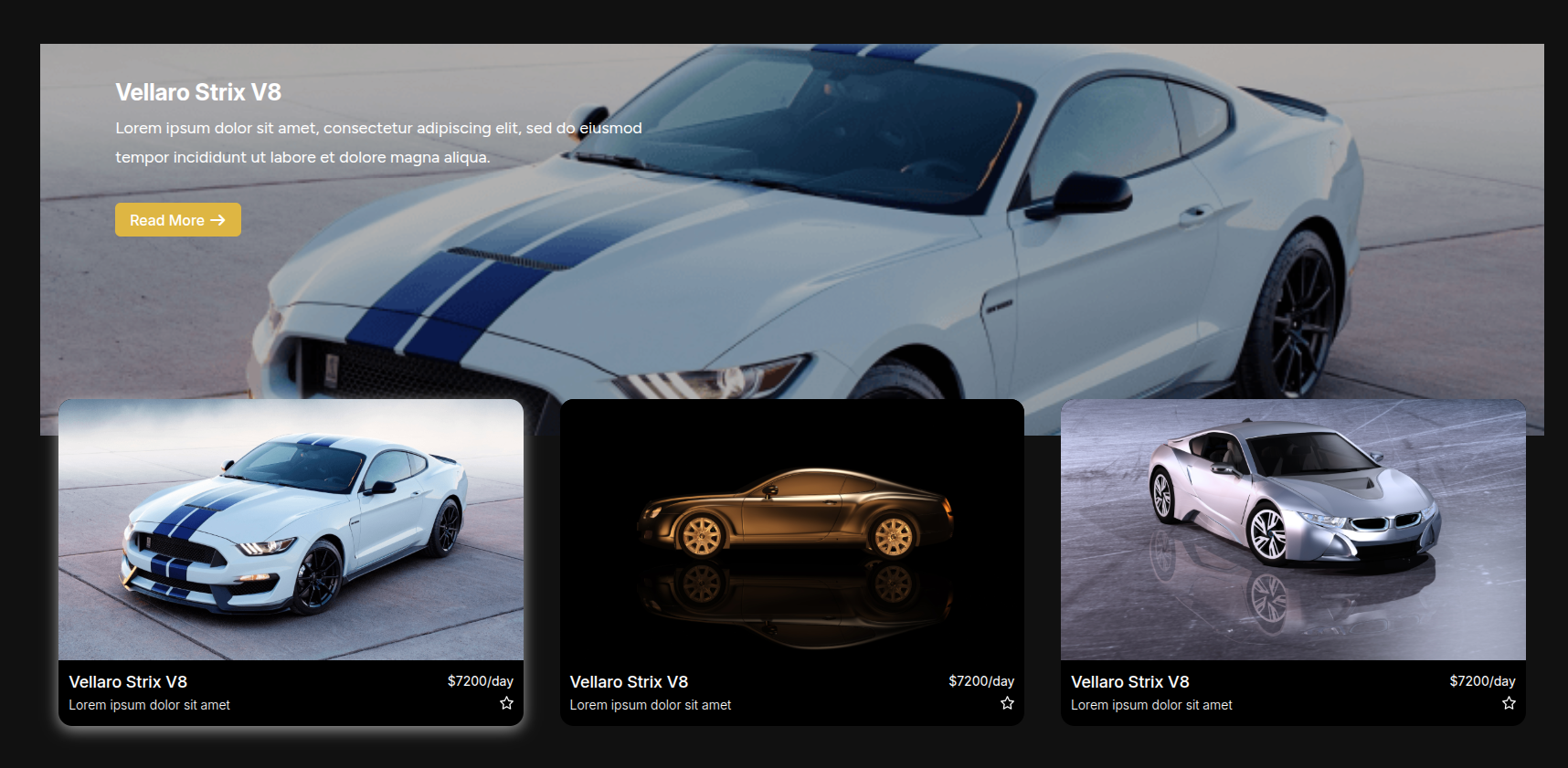
Our Blogs Section
Use the guidelines below regarding setting up the Our Blogs section.
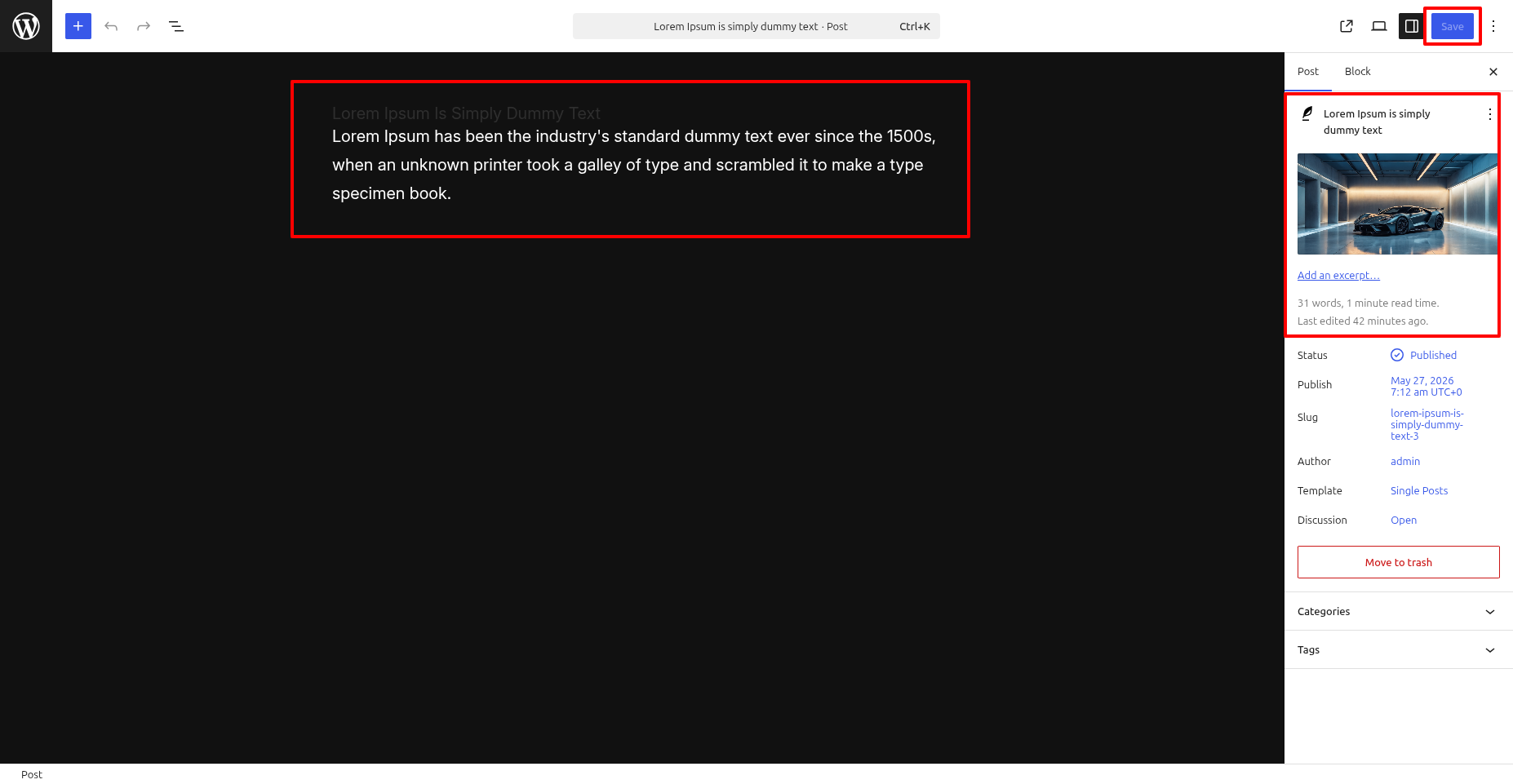
Go to WordPress Dashboard -> Posts -> Add New Posts -> customize each item according to your preferences by clicking on them.
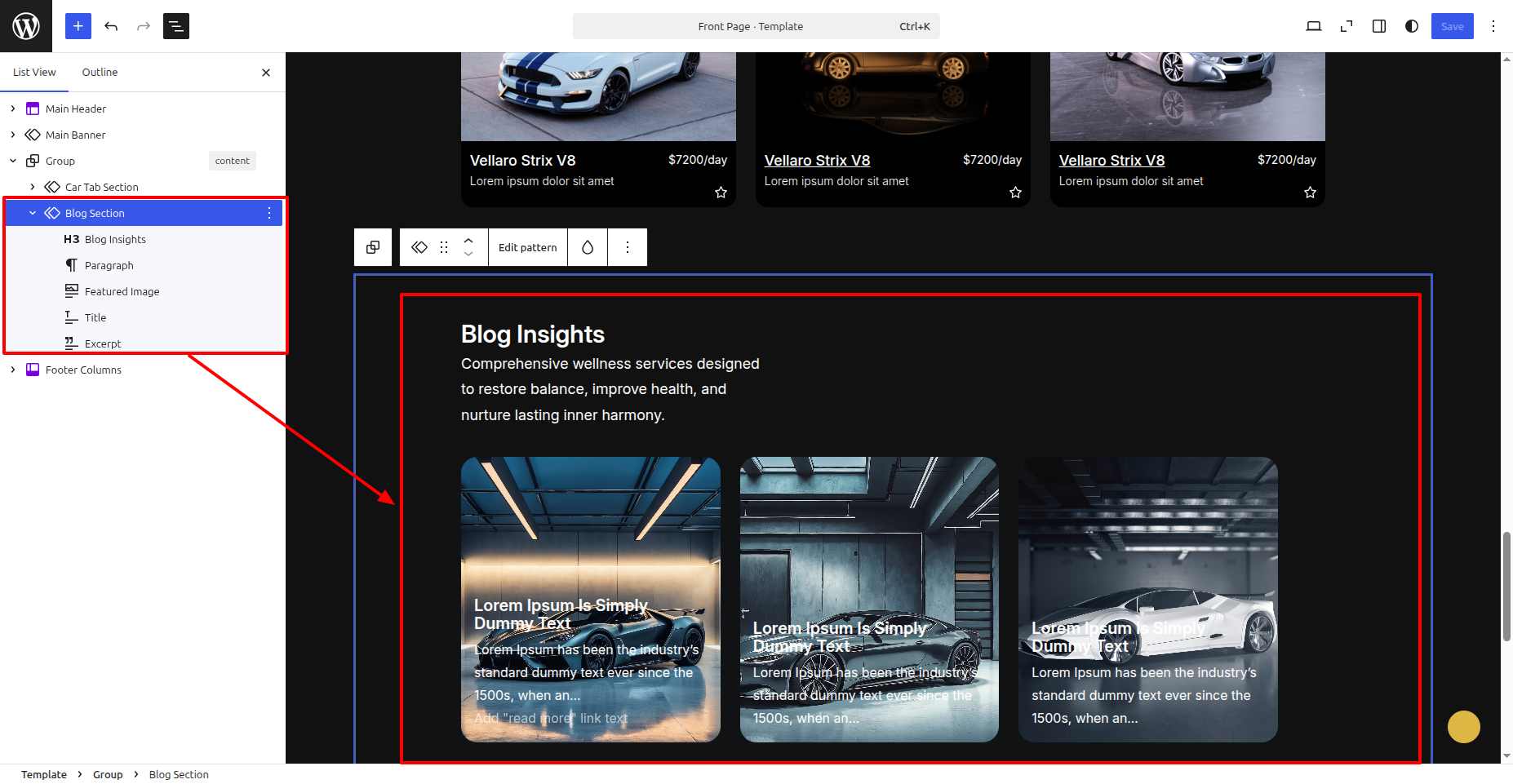
Go to WordPress Dashboard -> Appearance -> Editor -> customize each item according to your preferences by clicking on them.
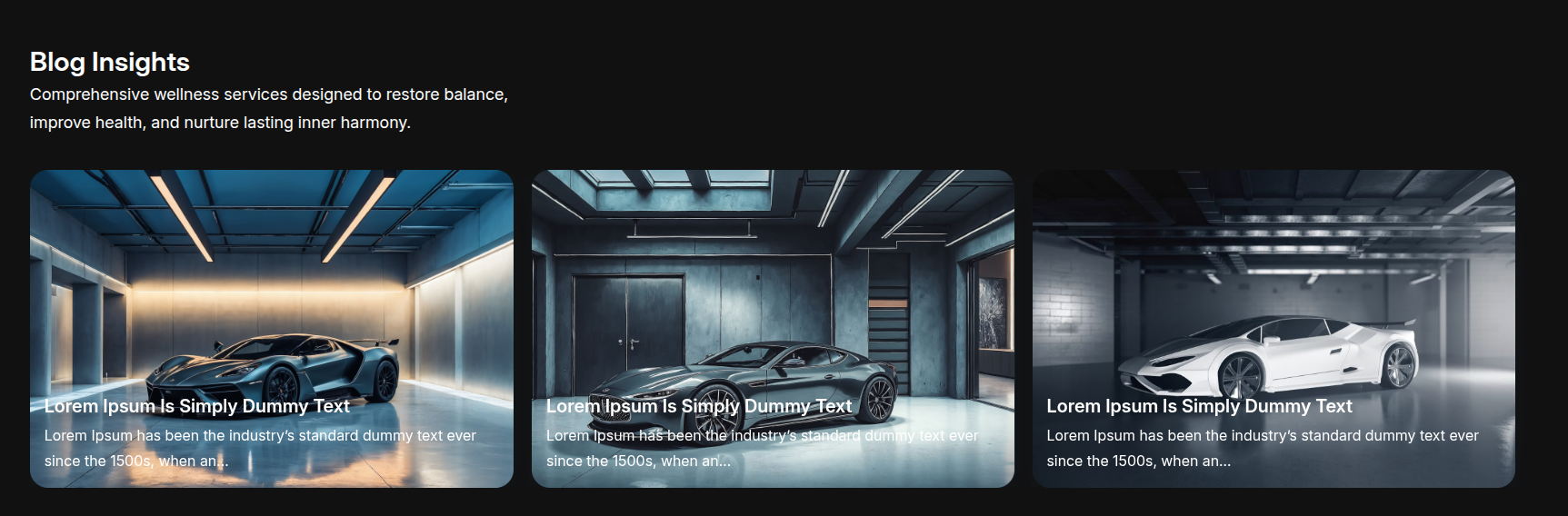
These are the front part of the Our Blogs section.
Footer Section
Use the guidelines below regarding setting up the Footer section.
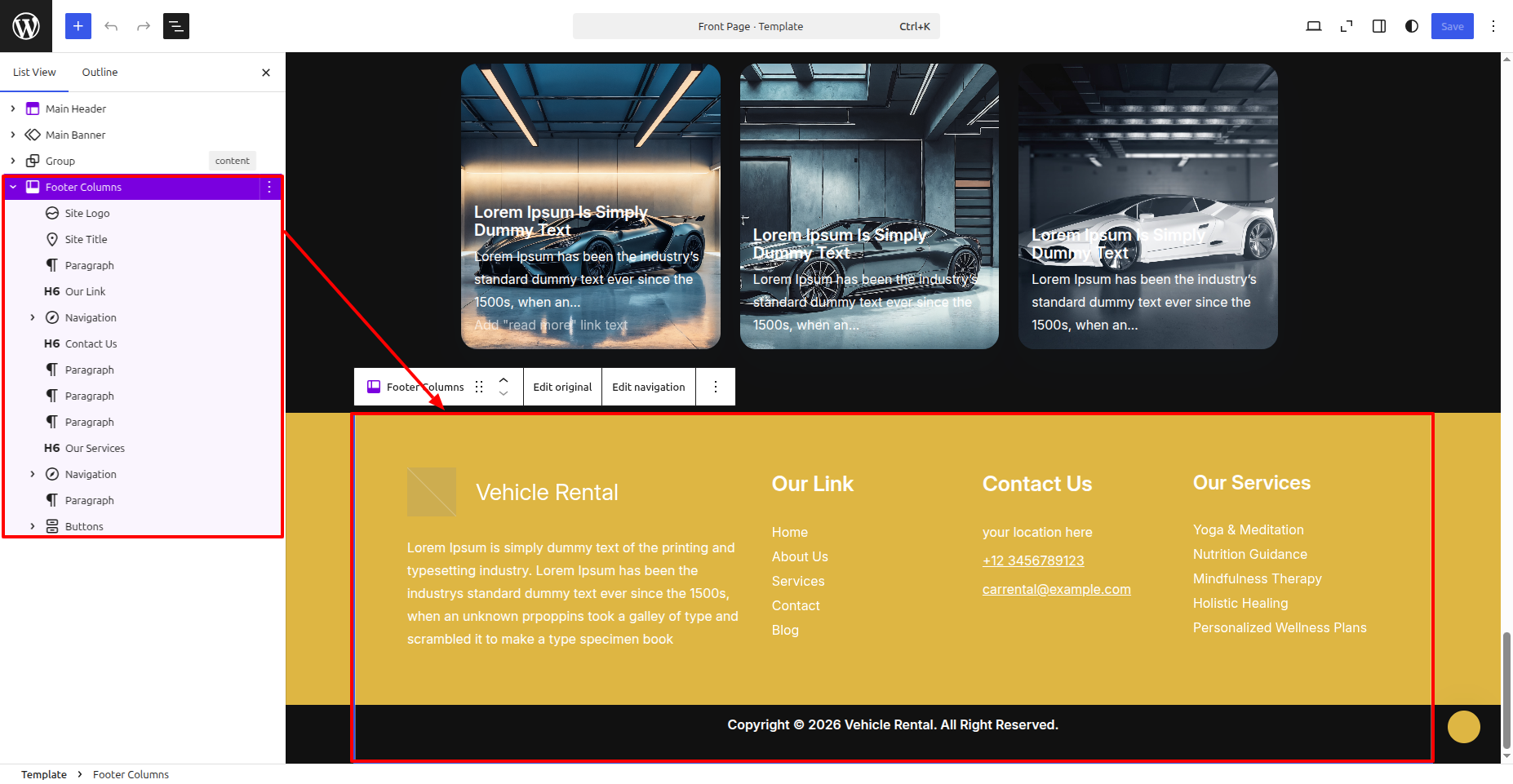
Go to WordPress Dashboard -> Appearance -> Editor -> customize each item according to your preferences by clicking on them.
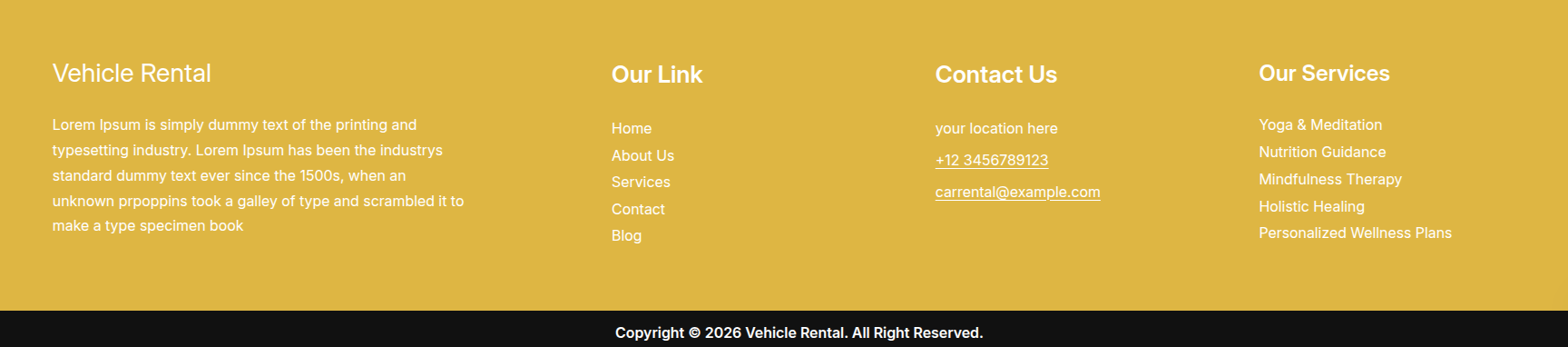
These are the front part of the Footer section.
 https://wordpress.org/documentation/article/wordpress-block-editor/